Run your whole academy in one place. Free for academies.
Look like an international institute. Run like one. Automatically. Classes, calls, fees, AI class monitoring and parent reports, with no WhatsApp, Zoom or Meet.
0features live to fully control and monitor your academy
This is not a normal schedule. This is LearnlyPro.
4:58PM● Demo preview
Every feature
Everything included. Nothing to add on.
Every tool your academy needs to teach, protect, earn and grow. Tap an area to see what is inside.
Challenges Academy Owners Face Worldwide
The Operational Headaches Academy Owners Worldwide Face Every Day
Running an academy shouldn't mean losing sleep over leaked numbers, chaotic WhatsApp groups, and missing fee payments.
"The teacher went direct, and all our hard work was wasted."
Teacher Poaching Families
Teachers exchange WhatsApp numbers in class, offer discounts directly, and take students private. The academy loses both student and revenue.
FixProtected Contact PrivacyLive Today
Classes take place inside LearnlyPro. Personal phone numbers, emails, and WhatsApp contacts are hidden behind privacy controls. Teachers never see student contact info.
"How do I sit in on every class at the same time?"
Supervision Blindspots
When 20-50 classes run simultaneously, owners cannot join 50 Zoom calls at once to verify teacher conduct, timing, and syllabus progress.
FixSilent Admin Join & TimelineLive Today
Admins can quietly join any active class without camera interruption. Session timelines highlight exact start times, tardiness alerts, and student attendance.
"Who has time to watch hours of class recordings?"
The Video Audit Trap
Reviewing 40+ hours of raw video daily is impossible. When a parent complains, finding the exact incident takes hours of painful scrubbing.
FixSilent Admin Join & TimelineLive Today
"The teacher turns up late, or takes the day off without telling me."
Teacher Tardiness & Absenteeism
Teachers joining 10-15 minutes late or silently cancelling classes. Owners only find out when an angry parent demands an explanation or refund.
FixSilent Admin Join & TimelineLive Today
"I'm embarrassed to ask for fees every single month."
Humiliating WhatsApp Fee Chasing
Begging parents on WhatsApp every month for tuition fees feels undignified, damages parent relationships, and takes hours of manual messaging.
FixAutomated Fees & Polite RemindersLive Today
Professional invoices generate automatically each month. Polite system reminders handle fee collection, while parents upload bank transfer slips for admin verification.
"Transfer slips get lost in WhatsApp chats."
Lost Bank Slips & Accounting Chaos
Parents claim they paid via EasyPaisa or bank transfer. Proof screenshots get buried under hundreds of daily chats, causing bitter billing disputes.
FixAutomated Fees & Polite RemindersLive Today
"Overseas parents ask for an update every other day."
Overseas Parent Anxiety
UK, US, and Gulf families expect constant accountability. Owners spend half their day asking teachers for status updates just to reply to parents.
FixParent Weekly Summaries & PDFsLive Today
Overseas parents receive automated weekly progress digests and printable monthly PDF reports detailing attendance, topics completed, and homework status.
"Every month-end, payroll turns into an argument."
Teaching Hours & Payroll Disputes
Teachers claim 40 hours taught while rough notebooks say 30. Without automated timestamped check-in logs, month-end payroll ends in mistrust.
FixSilent Admin Join & TimelineLive Today
"The teacher left and walked off with our entire contact database."
Stolen Contact Databases
When a teacher quits, they already have every parent and student saved on their personal WhatsApp, allowing them to launch a competing academy.
FixProtected Contact PrivacyLive Today
"It's my daughter's class. I worry about the screen and the camera."
Privacy & Modesty for Female Students
Protecting purdah and personal privacy is paramount. Families worry about leaked screenshots, recording misuse, or male teachers having personal numbers.
FixProtected Contact PrivacyLive Today
"Sudden power cuts and dropped internet, again and again."
Power Outages & Unstable Internet
Sudden power cuts break Zoom calls, video freezes, and lessons collapse halfway through, leaving parents frustrated with poor institutional reliability.
FixAutomated Cloud RecordingsLive Today
Every session records automatically to secure cloud storage. If a student experiences a sudden power cut or network drop, they can review the recorded lesson anytime from their portal.
"Six months in, the parent says: 'My child has learned nothing!'"
Zero Tangible Proof of Progress
A parent pulls out demanding refunds claiming zero learning happened. Without chronological lesson logs, the academy cannot prove value delivered.
FixParent Weekly Summaries & PDFsLive Today
"In a Quran academy, Sabaq, Sabqi and Manzil records get lost in the register."
Quran Progress Breakdown
Qaris write Quran memorization on paper diaries that get lost. Nobody tracks Surah/Ayah milestones, and parents cannot see whether their child is advancing.
FixDedicated Quran Lesson LogLive Today
Dedicated tracking for Quran academies: Qaris log the exact Surah and Ayah range for Sabaq, Sabqi, and Manzil, giving parents total visibility into memorization milestones.
"Homework and assignments get buried in the chat."
Homework Lost in the Void
Homework photos sent via WhatsApp groups get lost in casual chat. Teachers cannot mark them systematically, and parents see no formal feedback.
FixIn-App Homework & Question BankLive Today
Teachers assign homework inside the portal, students submit files or written work, and teachers mark them cleanly. Question banks store test papers for reuse.
"Handling trial classes and new admissions wears me out."
Trial & Admissions Friction
Manually creating meeting links, matching teacher availability, and following up on trials manually exhausts staff and causes student drop-off.
FixScheduled Meetings & TimetablesNew Feature
Pre-schedule recurring weekly classes on the master calendar. Classes appear with active countdown timers on dashboards with no daily link copying needed.
"Important announcements and notices never reach the students."
Buried Announcements & Notices
Urgent timetable updates, holiday notifications, and exam notices get buried in noisy chat groups. Students miss classes claiming they never saw the notice.
FixMessages, announcements and complaintsLive Today
"Making exam papers and question papers again and again."
Question Paper Fatigue
Teachers repeatedly re-type past papers and test questions manually every term instead of drawing from a structured digital question bank.
FixIn-App Homework & Question BankLive Today
"Zoom, WhatsApp and Google Drive, all scattered in different places."
Fragmented 'Jugaad' Stack
Duct-taping separate consumer apps together destroys institutional dignity. Parents want an organized, secure school portal—not random meeting links.
FixLive classesLive Today
Interface
See the app
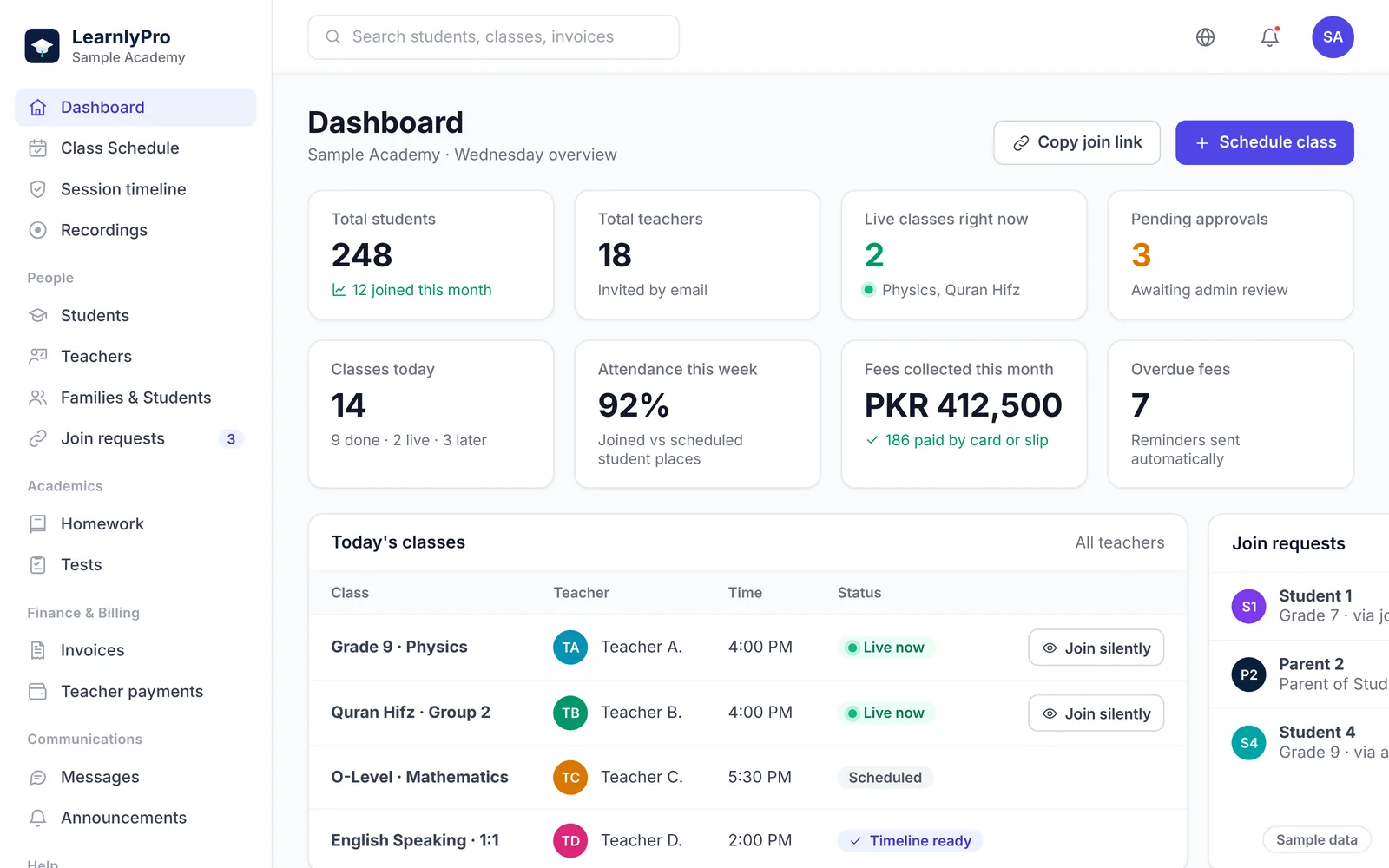
Academy dashboard
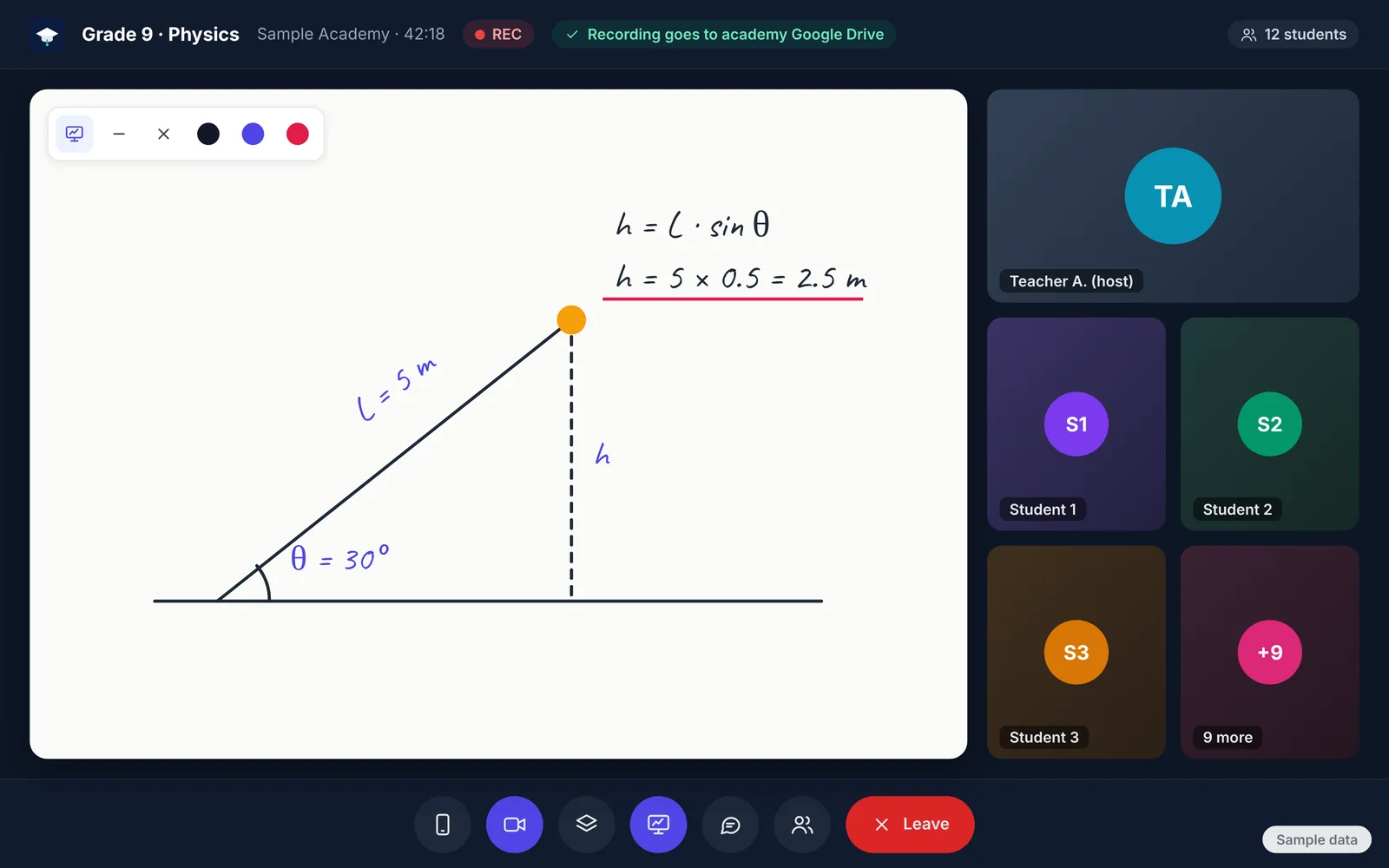
Live classroom
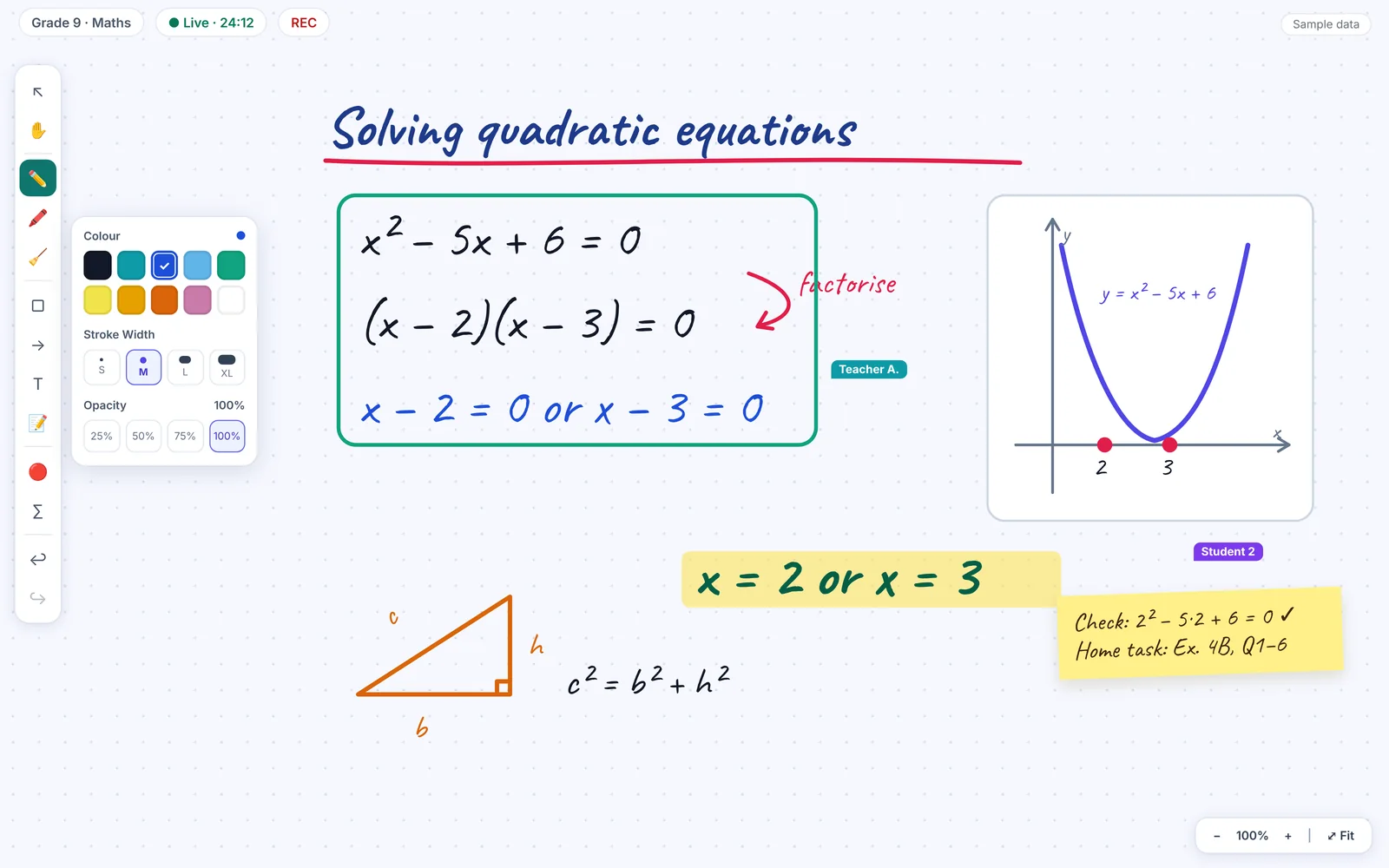
Whiteboard
Built for
Online academies
Institutes
Virtual universities
Homeschooling families
Quran academies
Independent teachers
Platform map
Students and parents at the centre. Academies and teachers around them.
Open a slice to read that tool. The centre is students and parents. The ring is the work academies and teachers do for them.
For Academies, Institutes & Virtual UniversitiesFor Teachers
Students & Parents
For Academies, Institutes & Virtual Universities
For Teachers
Students & Parents
Coming soon
Hover or tab through a slice, then open it.
For Academies, Institutes & Virtual Universities (26)
Four steps from the application to the first class.
1
Create your academy
Apply with the free sign-up and add your academy. No card is needed. A new academy is reviewed before people can log in. There is no academy subscription.
2
Invite families and teachers
Send your join link or academy code to families. Invite teachers by email. They sign up with their own account.
3
Approve them
You accept each request. One parent or student login can belong to more than one academy, and each academy stays separate.
4
Start the class
Open the class inside LearnlyPro. Students join there. You do not paste a Zoom link into a chat.
Open any feature to read what it does. Academies and teachers can turn features on or off.
Live classes
Run 1-on-1, group and trial classes inside LearnlyPro. Schedule once or on repeat days. No Zoom link.
Run 1-on-1, group and trial classes inside LearnlyPro, with no Zoom or Meet link. The admin schedules a class once, or on repeat days for up to 3 months, and LearnlyPro stops a double-booking for the same teacher. Teacher, students and parents get an email reminder 30 minutes before, and everyone joins from their own account with video, mic and the teacher's screen share.
How it works
The admin schedules the class once, or on chosen weekdays for up to 3 months.
LearnlyPro checks the teacher's timetable and stops a double-booking.
Teacher, students and parents get an email reminder 30 minutes before. They can join 15 minutes early.
If a teacher has an emergency, they send a cover or reschedule request and the admin approves it.
What you get
Parents do not install a separate meeting app.
No more teacher clashes on the timetable.
The same classroom works for one student or a group.
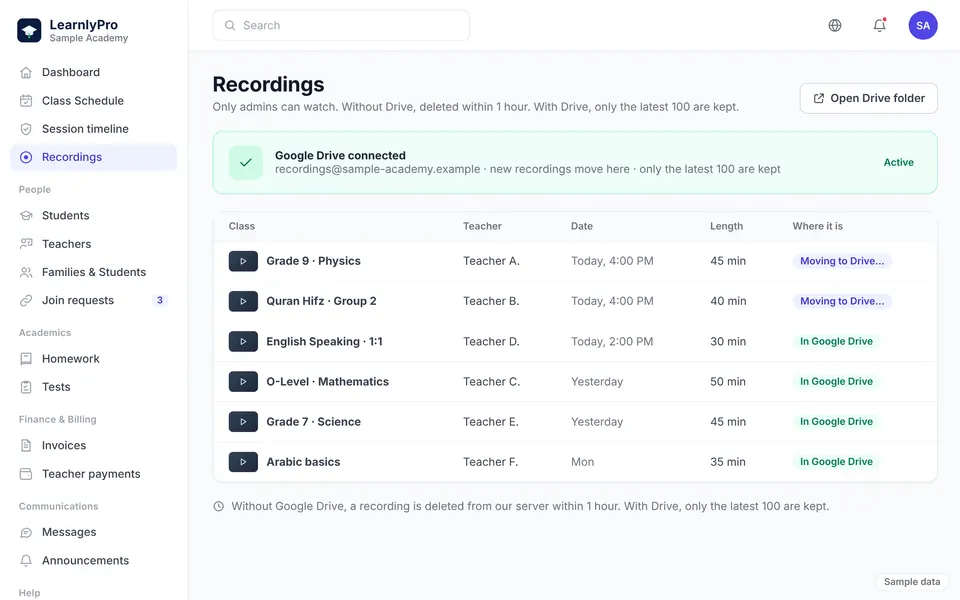
Our server records every class automatically (audio and screen share). Only the admin can watch.
LearnlyPro's server records every class automatically: the class audio and screen share. Only the academy admin can watch recordings. Without Google Drive connected, the file is deleted from our server within 24 hours. With Drive connected, it moves to the academy's own Drive, which keeps the latest 100.
How it works
Recording starts on its own when the class begins. The teacher does not need to press anything.
The server records audio and screen share for the whole class.
With Google Drive connected, the file moves to the academy's Drive. Only the latest 100 are kept there.
Without Drive, the recording is deleted from our server within 24 hours.
What you get
No class is left unrecorded.
Only the academy admin can watch. Recordings are not shared with families.
Recordings do not pile up on our servers.
The academy keeps its own copies in its own Google Drive.
An admin can join any live class silently, gets alerts when a teacher is late or drops off, and sees a session timeline afterwards.
An academy admin can open any running class and watch and listen silently. Nobody sees or hears them, and leaving does not end the class. LearnlyPro alerts the admin if a teacher hasn't joined 5 minutes after start, joins late or drops off. After class, the admin sees a minute-by-minute timeline of who joined, left or came late. AI class-safety monitoring works alongside this.
How it works
The admin opens today's classes and picks one that is running.
They join silently. The teacher and students keep working.
LearnlyPro alerts the admin if the teacher is not there 5 minutes after start, is late or disconnects.
After class, the session timeline shows who joined, left or came late.
What you get
The owner does not have to sit in every class.
A problem can be checked while the class is still running.
Late or missing teachers are noticed in minutes, not days.
Teachers know classes can be reviewed, which keeps the room fair.
An AI monitor listens to each live class and alerts the admin about phone numbers, contact requests or bad language. The admin decides what to do.
LearnlyPro's AI monitor listens to a live class and alerts the admin if it hears a phone number, a social media handle, a contact request or bad language, or if a teacher goes silent. An AI Monitor badge shows in the class, so teachers and students know it is on. After class, the admin can read an AI session report. The AI only raises a flag. The admin always decides what happens next. It works alongside silent join and the session timeline.
One parent or student login, many academies
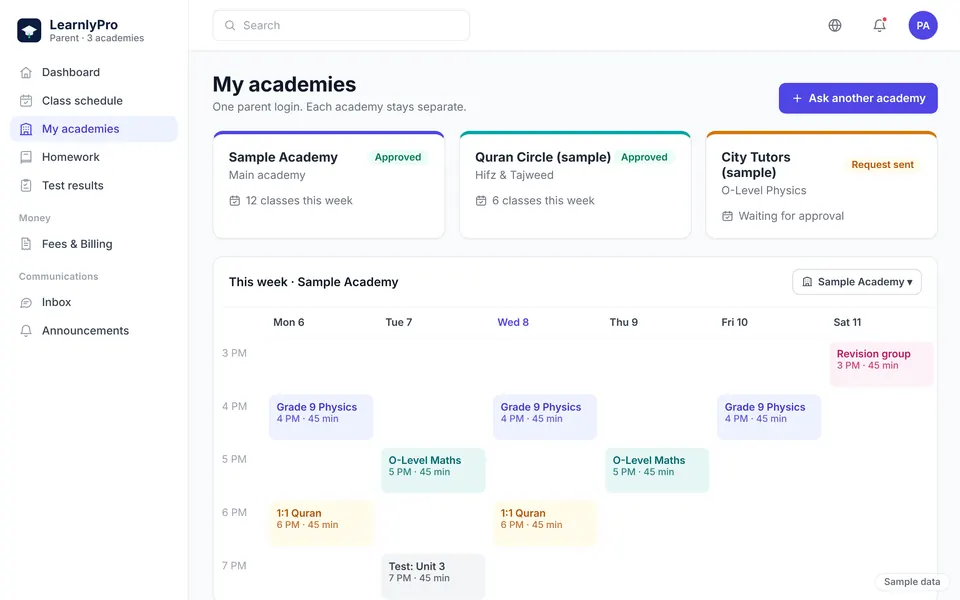
One parent or student login works across many academies. Switch academy in the same account. Each academy's data stays separate.
One parent or student login works across many academies. Search an academy, ask to join, and switch between academies inside the same account. Each academy sees only its own students, fees and records. If a child takes classes at two academies, LearnlyPro warns you when two classes clash. Teacher accounts in many academies are coming soon.
How it works
The parent or student signs up once.
They search an academy, or use its join link or code, and ask to join. The academy approves.
They switch academy inside the same account.
Fees, records and sharing choices stay separate for each academy.
What you get
No new password for every academy.
A child can learn Quran at one academy and school subjects at another.
Send families a join link or your academy code. Nobody enters your academy until you approve. Teachers join by email invitation.
Send families a join link, or your 8-character academy code. A parent signs up once, adds their children and asks to join, and nobody enters your academy until you approve. Teachers join with a personal email invitation from your admin panel.
How it works
Create a join link, or share your academy code.
Send it to parents (and to students aged 18 or over) by the channel you already use.
The parent signs up, adds their children and asks to join.
You approve the request. Teachers get a personal email invitation instead.
What you get
New families can be admitted without a spreadsheet.
Parents decide with tick boxes what an academy may see. Teachers never see family phone numbers or emails in LearnlyPro.
Parents decide, with simple tick boxes, whether an academy may see their phone number, email and other details; all are off until they tick them. Teachers never see family phone numbers or emails in LearnlyPro. Parents also choose whether their child's camera can be used and recorded; without that, the child's camera stays off.
How it works
The parent opens the privacy choices for each academy.
They tick what that academy may see. Everything starts switched off.
Teachers see the student in class, never a phone number or email.
The parent also chooses camera and recording consent for each child.
What you get
Families decide what is shared.
Teachers cannot build a private contact list of your families.
A child's camera stays off without the parent's consent.
If a teacher leaves, access to those students ends.
Announcements, feedback forms and a complaints desk. Serious complaints also go to the LearnlyPro team. Fee reminders go out automatically.
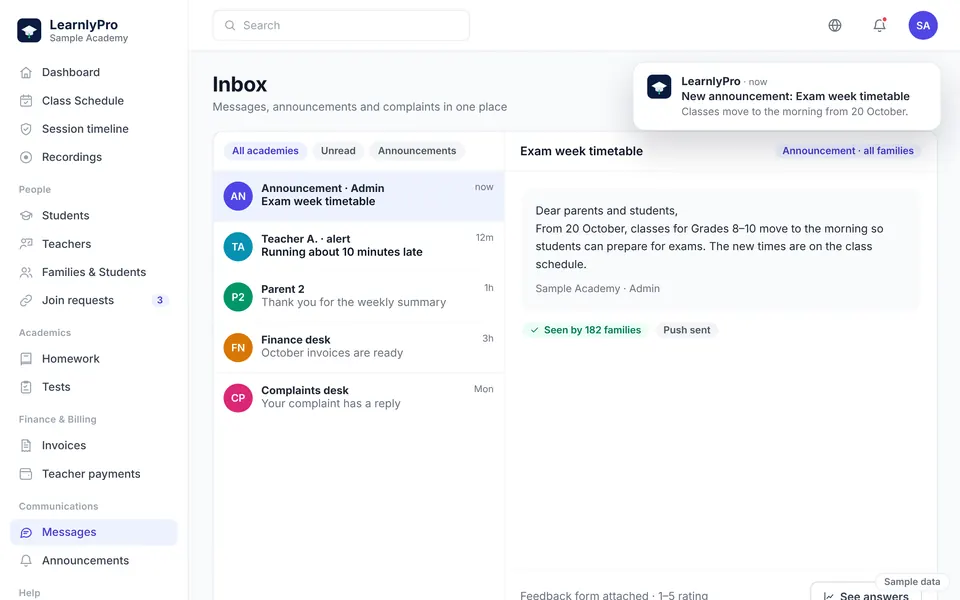
Send announcements to the whole academy, one class or a group, and collect answers with simple feedback forms. Parents can lodge a complaint; serious ones (safety, abuse, payment disputes) go straight to the LearnlyPro team too. Fee reminders go out automatically before and after the due date, and teachers can send parents a 'running late' alert. There is no private teacher-to-family chat.
How it works
Staff post an announcement to everyone, one class or a group.
A feedback form collects answers when you need them.
A parent files a complaint. Serious ones also reach the LearnlyPro team.
Fee reminders go out 3 and 1 days before the due date, on the day, and after it.
Browser notifications on phone or computer, with no app download: announcements, fee reminders, forms, complaint replies and 'teacher running late' alerts.
Turn on browser notifications on phone or computer, with no app download. You'll get a ping for academy announcements, fee reminders, feedback forms, complaint replies and 'teacher is running late' alerts. Mute any type you don't want. Class reminders and homework notices come by email and inside the account.
How it works
Open LearnlyPro in your browser.
Allow notifications when the browser asks.
Announcements, fee reminders and late-teacher alerts appear as notifications.
Mute any type you don't want in your settings.
What you get
Parents hear academy news without watching a chat all day.
Nothing to install from an app store.
It works on the phones and computers families already use.
HR, Finance and Quality staff get their own logins. HR handles e-signed contracts and staff issues. Quality sees the schedule and late-teacher alerts.
Give HR, Finance and Quality staff their own login, so each sees only their own work. HR sends contracts and policies for e-signature, keeps a signed certificate, and logs leave, grievances and performance notes. Quality staff see the class schedule and late-teacher alerts. Finance sees fees, invoices and teacher payments.
How it works
The admin gives a staff member an HR, Finance or Quality login.
HR sends a contract or policy, and the teacher signs it online.
HR logs leave, grievances and performance notes.
Quality staff check the class schedule and late-teacher alerts.
Set each teacher's salary. LearnlyPro works out monthly pay from completed classes. Record expenses and see a monthly profit and loss.
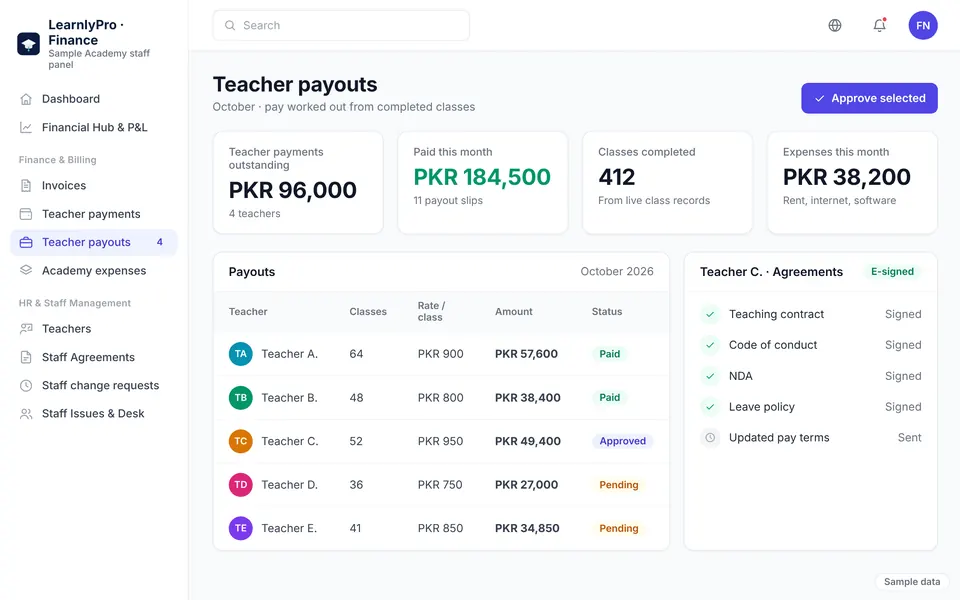
Set each teacher's salary: fixed monthly, per class, per student or a % of fees collected, plus allowances. At month end LearnlyPro works out pay from the classes actually completed; the admin approves it, marks it paid and attaches the slip. Teachers see their own earnings and payslips. Record academy expenses too, and see a simple monthly profit and loss.
How it works
The admin sets each teacher's salary type and rate.
At month end, LearnlyPro calculates pay from completed classes.
The admin approves the pay, marks it paid and attaches the payment slip.
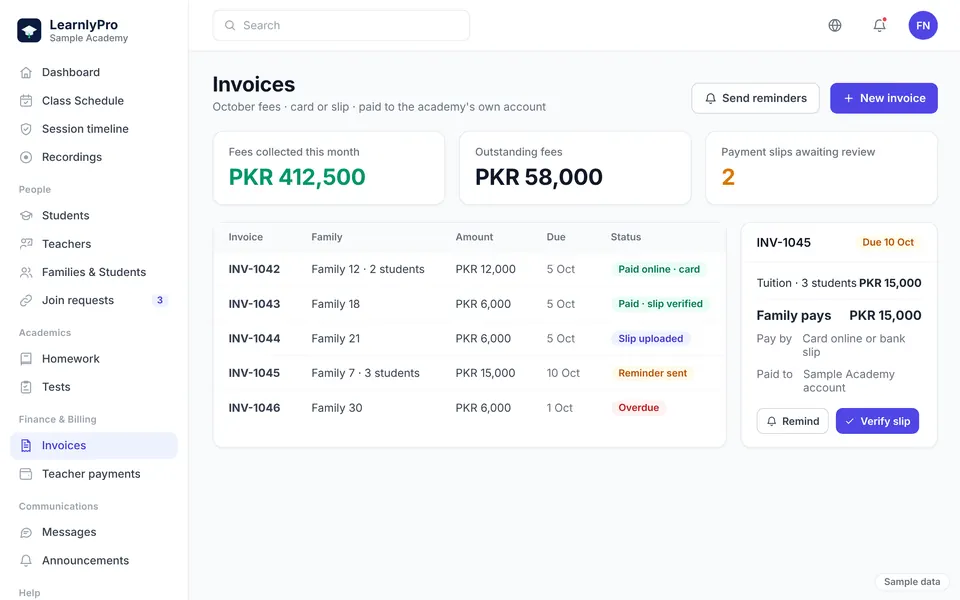
Create invoices and LearnlyPro sends reminders. Parents pay online by card, or upload a transfer slip for the admin to verify. The money goes to the academy's own account.
Create invoices for each family, and LearnlyPro emails them, reminds parents 2 days before the due date and flags overdue ones. Parents pay online by card, or upload a bank or wallet transfer slip that the admin verifies in one click. A receipt goes out either way. The money goes to the academy's own account, which the academy saves in LearnlyPro. You set your own fees.
How it works
The admin saves the academy's payout account and creates invoices.
LearnlyPro emails each invoice and reminds the parent 2 days before the due date.
The parent pays online by card, or uploads a bank or wallet transfer slip that the admin verifies.
The money goes to the academy's own account and a receipt is sent.
What you get
No chasing every family from a personal phone.
Overdue fees are flagged automatically.
Every invoice and receipt stays on the family's record.
Set homework for a class or chosen students. Students or parents submit it; the teacher scores it and both are notified.
Set homework for a whole class or chosen students and attach a worksheet. Students, or a parent on their behalf, submit text or a file; late work is accepted and marked late. The teacher gives a score and comment, and student and parent are notified each time. Automatic AI homework checking is coming soon.
How it works
The teacher sets homework for a class or chosen students, with a worksheet if needed.
The student, or a parent, submits text or a file.
Late work is accepted and marked late.
The teacher gives a score out of 100 and a comment. Student and parent are notified.
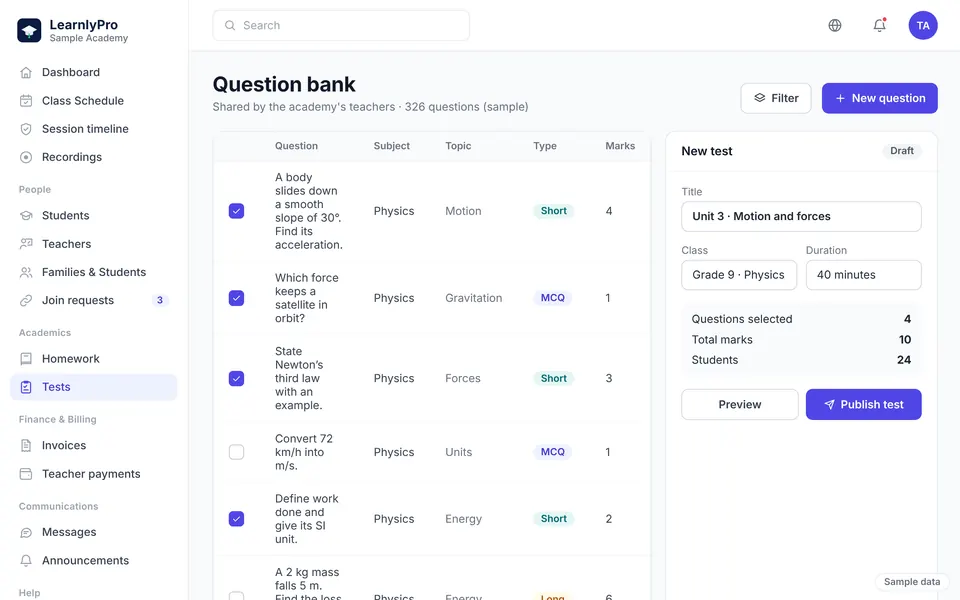
Build tests from a shared question bank. MCQs are marked automatically. Students and parents see results when the teacher releases them.
Teachers build tests from a shared question bank or type new questions: MCQ, short answer, file upload or oral. Set a time limit and due date; MCQs are marked automatically and the teacher marks the rest. When the teacher releases results, students and parents see the score and answers. Weak topics are tagged on the student's record. Proctored exams are coming soon.
How it works
Add questions to the academy's shared bank, or type new ones.
Build a test with a time limit and a due date.
MCQs are marked automatically. The teacher marks the rest.
The teacher releases results. Students and parents are notified.
What you get
Good questions are reused instead of rewritten every term.
The admin sets up chapters and topics. Teachers tick topics off for each student, and parents see the % done.
The admin sets up each course as chapters and topics. Teachers tick topics off for each student, or straight from their class note, and parents see the % complete and what's left on their Progress page.
How it works
The admin sets up the course as chapters and topics.
The teacher ticks a topic for a student when it is done.
A class note marked 'done' ticks the topic automatically.
Parents see the % complete and the topics left.
What you get
A new teacher can see what the student has already covered.
Parents are not guessing which chapter the child is on.
Gaps show up before the end of term.
The syllabus lives with the academy, not in one teacher's notebook.
A month-by-month timeline for each student: classes, teacher's notes, homework, tests and Quran lessons. Parents and teachers see the same record.
Every student has a month-by-month timeline: classes attended, teacher's notes, homework, test results and Quran lessons, plus their weak topics. Parents, the student's teachers and the admin see the same record, and a new teacher can open the full history to catch up.
How it works
Classes, notes, homework and results are added as they happen.
Open the student and pick a month.
See attendance, notes, homework, tests and Quran lessons together.
A new teacher opens the full history page to catch up.
What you get
One weak week is easier to understand in context.
A new teacher catches up without a long handover meeting.
Parents see a record, not only a feeling.
The history stays with the academy if a teacher changes.
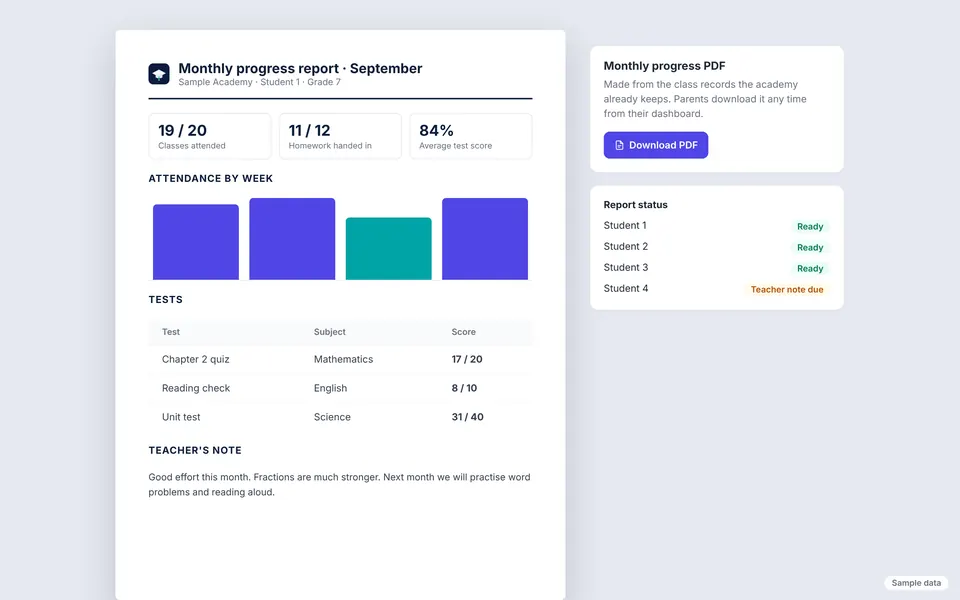
Parents download a monthly progress report PDF any time: attendance, homework, tests, teacher's notes and Quran lessons.
Parents can download a monthly progress report PDF any time: attendance, homework, test results, teacher's notes and Quran lessons for that month. Teachers and admins get a staff copy that also includes private notes.
How it works
The month's classes, notes and results build up on the student record.
The parent opens Monthly report on their dashboard.
They pick a month and download the PDF.
Teachers and admins can download a staff copy with private notes.
Every Monday morning, parents get a summary of last week by email and in their account. No teacher has to type it.
Every Monday morning, parents get a short summary of last week by email and in their account: attendance, homework done, test results, teacher's notes and Quran progress. No teacher has to type it. A weekly voice report is a different idea, and it is coming soon.
How it works
The week's attendance, homework, tests and notes stay on the student record.
Every Monday morning, LearnlyPro builds the summary.
After each lesson the teacher records Sabaq, Sabqi or Manzil with para, surah and ayahs, a quality mark and tajweed mistakes.
Built for Quran academies: after each lesson the teacher records Sabaq, Sabqi or Manzil with para, surah and ayahs, a 1–5 quality mark and tajweed mistakes (makharij, ghunnah, madd and more). Parents see it on their child's timeline, weekly summary and monthly report. In class, the teacher can open any Quran page on the whiteboard and mark it up.
How it works
After the lesson, the teacher picks Sabaq, Sabqi or Manzil.
They enter the para, surah and ayahs, and a 1–5 quality mark.
They tick tajweed mistakes such as makharij, ghunnah, madd or qalqalah.
Parents see it on the timeline, weekly summary and monthly report.
What you get
A substitute teacher can see exactly where the student stopped.
Lessons are not kept only in a paper diary.
Repeated tajweed mistakes are easy to spot.
Any Quran page (1–604) can be opened on the class whiteboard.
Admins start a meeting in one click. Guests wait in a lobby until let in. Chat, files, raise hand, and up to 60 minutes plus 10.
Admins can start a meeting in one click: for a parent meeting, a cover lesson or a quick doubt session. Share the guest link, and people wait in a lobby until you let them in. Chat, share files, raise hands, mute or remove people, and the meeting is recorded. Each meeting runs up to 60 minutes plus 10 extra. The admin can make a teacher the host.
How it works
The admin starts an instant meeting and can make a teacher the host.
Share the guest link. Guests wait in a lobby until you let them in.
Chat, share files, raise hands, and mute or remove people.
The meeting is recorded and closes after 60 minutes plus 10 extra.
What you get
A parent meeting or doubt session can start the same day.
A full whiteboard in every class: up to 20 boards, PDF import, YouTube and any Quran page. Hand the pen to a student.
A full whiteboard inside every class: pens, shapes, sticky notes and up to 20 boards per lesson. Import a PDF or picture, play a YouTube clip, or open any Quran page (1–604) and mark it up. Let all students draw, or hand the pen to one student, then share the board with students after class.
How it works
Open the whiteboard during the live class.
Write, draw, or import a PDF, a picture or a Quran page.
Let all students draw, or give the pen to one student.
Share the board with students after class.
What you get
Maths, grammar and tajweed examples do not need a second app.
Attendance takes itself: LearnlyPro marks who joined and who missed. Admins see late joins; parents see attendance %.
Attendance takes itself: LearnlyPro marks who joined the live class and who missed it, so nobody has to call the register. The admin's timeline also shows who joined late and by how many minutes. Parents see their child's attendance % on the timeline, weekly summary and monthly report.
How it works
Students join the class from their account.
LearnlyPro marks them present when they join.
Students who did not join are marked absent when the class ends.
Admins see late joins; parents see the attendance %.
What you get
No manual roll call.
Late teachers and students show on the admin's timeline.
Anyone can open a support ticket to the LearnlyPro team from inside their account, pick how urgent it is and attach screenshots.
Anyone (parent, student, teacher or staff) can open a support ticket to the LearnlyPro team from inside their account, pick how urgent it is, and attach screenshots. Every reply stays on the ticket so nothing gets lost, and the academy admin can see their academy's tickets too. You can also write to info@learnlypro.com or WhatsApp +92 340 9190021.
How it works
Open a ticket and describe the problem.
Pick how urgent it is and attach screenshots.
The LearnlyPro team replies on the ticket.
The academy admin can see their academy's tickets.
What you get
Help requests are not stuck in one person's phone.
After each class the teacher writes a 30-second note per student: topic, done or repeat, understanding stars and where to continue.
After each class, the teacher writes a short note for each student: today's topic, whether it was done, partly done or needs repeating, understanding from 1 to 5 stars, and the next plan, so everyone knows where to continue. They can add a voice note too. Parents see the notes on the timeline, the weekly summary and the monthly PDF. Before the next class, the teacher sees the last lesson card.
How it works
After class, the teacher opens the note for each student.
They write the topic and mark it done, partial or repeat.
They give understanding stars (1–5) and write where to continue next time. A voice note is optional.
Parents see it on the timeline, weekly summary and monthly PDF. A 'done' note ticks the syllabus topic.
Plan a meeting ahead of time, pick repeat days, and invite people by email.
Plan a meeting ahead of time, pick repeat days, and invite people by email. Everyone sees it on a calendar and in an upcoming-meetings list.
Whiteboard subject toolkits
Ready tools for maths, physics, chemistry, biology and computer science.
The live whiteboard has ready tools for maths, physics, chemistry, biology and computer science, so teachers can draw graphs, circuits and diagrams in class.
New
App in Urdu
The app screens can now be used in Urdu, with right-to-left layout.
New
Branded emails
Invoices, reminders, class alerts and approvals arrive as clean emails with your academy's name.
Photos in the classroom
Students and teachers show their profile photo, or their initials, in video tiles, the people list and chat.
Your academy logo
Upload your academy logo once. It shows in the sidebar, dashboard and classroom.
New
Tabbed dashboards
Admin and owner dashboards are split into simple tabs for quick navigation.
Admin and owner dashboards are split into simple tabs, so the main numbers are on top and details are one click away.
New
Share meeting links
Create a meeting link, then copy it or share it by WhatsApp or email in one click.
New
Revision list after class
After class, the teacher pins a short list of what to revise before the next class.
After class, the teacher pins a short list of what to revise before the next class, so students know exactly what to go over.
New
One calendar across academies
One timetable that shows a teacher's classes from every academy they belong to.
One timetable shows a teacher's classes from every academy they belong to, so a teacher who works for more than one academy does not have to check each academy separately.
New
Parent-teacher time slots
Parents book a short slot with the teacher, instead of arranging it in a chat.
A parent picks and books a short time slot with the teacher inside LearnlyPro, instead of arranging it back and forth in a chat.
New
Children's class library
Each child gets a library of their past classes, sorted by teacher. Students and parents can go back to a class when they need it.
Every student has their own class library. It lists past classes teacher by teacher, with each class's files and, while it is kept, its recording. Parents can open their child's library. A student who has left an academy keeps read access for 12 months.
New
Light mode
Switch the app to light mode, or back to a darker theme. LearnlyPro remembers your choice.
The app has a theme switch. Switch between Night, Classic and Soft themes for glare-free eye comfort in any room. LearnlyPro remembers your choice.
Launching soon 24
Tap one to read about it and vote for what we build first.
Teachers record lectures and prepare notes once, then sell them to students and academies worldwide. Vote so we build it first.
A proper exam mode with shuffled questions and a warning when the student switches tabs.
Generate a question paper from the syllabus the academy already teaches.
Past papers and mock tests aimed at board exams.
A careful estimate of a likely grade from the student's own work so far.
A short test when a student joins, so the academy can place them in the right level.
Help for teachers when they review homework. The teacher would still decide the mark.
A tutor students can ask outside class hours. Not a replacement for your teachers.
A short catch-up note for a student who missed a class or a point. Teacher class notes are already live.
Live translation during class for Urdu, Arabic and English.
Light recognition for finished work: points, badges and a leaderboard.
A simple streak for students who show up and finish the day's work.
A short spoken weekly report for parents. The written weekly summary is already live.
A certificate the academy can issue, with a QR code so a parent can confirm it is real.
A report card built from the marks and progress you already keep. The monthly progress PDF is already live.
Attendance that checks the student's face as they join. Ordinary attendance is already live.
A place where parents can find academies. This is not the teacher lecture marketplace.
A site on your own address, such as yourAcademy.learnlypro.com.
Academy notices and class reminders through WhatsApp. In-app messages and web push notifications are already live.
Mark a student's seat as a scholarship so the family is not invoiced for that course.
A fair rating academies can see, built from real class records.
One teacher login for more than one academy, with an academy switcher. Parents and students can already do this.
A mobile app that can keep some work when the internet drops. The platform already works in the browser.
A lighter class mode for low internet, so a lesson can continue when the connection is poor.
For Parents
A calm, reassuring window into your child's education
No pressure, no unannounced popups, and no aggressive fee collection. Parents enjoy a dignified dashboard with live class observation, verified progress trends, and private billing only when you choose to open it.
S
Good afternoon, Sarah
Logged in to Al-Hikmah Academy · Fatima (Grade 6)
Next class: Mathematics at 4:30 PM with Ms. Sana
Observer View
Live Class Monitor
Grade 6 Mathematics
Teacher: Ms. Sana • Topic: Algebraic Equations
Observer Mode (Mic & Camera disabled)
Quiet monitor mode lets parents verify attendance and teaching quality respectfully without interrupting the class.
96.4% Rate
30-Day Attendance
Attendance Trend
24 of 25 scheduled classes attended
Week 1Week 2Week 3Week 4
Average: 90%
Subject Marks
Recent Assessments
Evaluated by academy teachers
Quran & Tajweed94%
Mathematics88%
English Grammar91%
General Science86%
Term 2
Curriculum Track
Syllabus Completion
Topics covered this academic term
26 of 31 topics
Mastered with teacher notes & stars
Invoices & Receipts1 pending invoice
Open Invoices ↓
October 2026 Tuition — Fatima
Invoice #INV-2026-1082 · Due: 10 Nov 2026
Teachers never see your personal phone number or home address. All communications stay strictly within platform logs.
Daily Class Summaries
Read class notes, homework assignments, and teacher understanding stars after every lesson, plus downloadable monthly PDFs.
Dignified, Calm Billing
No embarrassing group chat callouts or aggressive banners. Review invoices in your own private billing tab when you are ready.
Compare
How LearnlyPro compares
A straight look at the tools academies already know. Yes means it is part of that product. Partial means only some of it. Add-on means you usually pay extra for it. Prices are public list prices and can change.
Yes
Partial
Add-on
No
Scroll sideways to see every tool
LearnlyPro compared with common meeting and classroom tools
Feature
LearnlyPro
Zoom
Google Meet
Microsoft Teams
Google Classroom
WhatsApp groups
Live class inside the product
YesClasses run inside the academy. No separate meeting link.
YesVideo meetings. Zoom is not an academy system for fees, parents and staff.
YesVideo meetings. Meet is not an academy system for fees, parents and staff.
YesMeetings are included. Education extras depend on the Microsoft plan.
NoNo live classroom of its own. Live classes use Google Meet.
PartialGroup calls exist. They are not a classroom with a register.
Class recording to the academy's Google Drive
PartialEvery class is recorded automatically on our server. Only the admin can watch. Drive keeps the latest 100; without Drive, deleted within 24 hours.
PartialRecording exists. Cloud recording is on paid plans. It is not sent to an academy Google Drive for you.
PartialRecording needs a qualifying Google plan. It is not an academy Drive handover.
PartialRecording is on many paid Microsoft plans. Storage stays in that Microsoft account.
NoClassroom does not record a live class.
NoNo automatic class recording.
Admin silent join, session timeline and teacher alerts
YesSilent join, alerts for late or missing teachers, and a session timeline after class. AI class-safety monitoring adds alerts for contact details and bad language.
PartialHosts manage the meeting. No academy silent join or session timeline.
PartialHosts manage the call. No academy session timeline.
PartialMeeting controls exist. No academy teacher alerts.
NoNo live class of its own to join.
NoNo silent admin join or session timeline.
Student contact details stay with the academy
YesParents choose what is shared. Teachers never see family phone numbers or emails.
NoPeople in the meeting are not held as academy-owned students.
NoA Meet call does not hide family contact details inside an academy.
PartialA school tenant can limit guests. That is not the same privacy model.
PartialThe school controls the class roster the teacher teaches.
NoPhone numbers are visible to people in the group.
Parent updates for attendance and progress
YesAttendance, teacher's class notes, a progress timeline, a weekly summary and a monthly PDF.
NoNo parent portal for an academy.
NoNo parent portal for an academy.
NoNo parent weekly summary or fee view for an academy.
PartialGuardians can receive email summaries of classwork.
PartialOnly if a person types an update into the chat.
Fees, invoices and online payment
YesInvoices, reminders, online card payment and slip verification. The money goes to the academy's own account.
NoNo academy invoices or fee collection.
NoNo academy invoices or fee collection.
NoNo academy invoices or fee collection.
NoNo fee collection.
NoNo invoices or fee records.
Homework kept on the student record
YesTeachers set it; students or parents hand it in on LearnlyPro.
NoNo homework record.
NoNo homework record.
PartialAssignments exist in Microsoft Teams for Education.
YesClasswork and assignments.
NoA file can be sent. There is no homework record.
Tests and a question bank
YesShared question bank, auto-marked MCQs. Proctored exams are coming soon.
NoNo academy question bank.
NoNo academy question bank.
PartialQuizzes exist in some Microsoft 365 education plans.
PartialQuiz assignments. Not a shared academy question bank.
NoNo tests or question bank.
Attendance for live classes
YesJoined and missed are marked automatically. Late joins show on the admin's timeline.
PartialMeeting reports on many plans. Not an academy attendance book.
PartialAttendance reports on some Workspace plans.
PartialMeeting attendance. Not a full academy register.
NoNo live-class register of its own.
NoNo class register.
Whiteboard during the class
YesLive whiteboard with PDF import and a Quran page viewer.
YesZoom Whiteboard is available as a Zoom tool.
PartialNo full class whiteboard of its own.
YesMicrosoft Whiteboard.
NoNo class whiteboard of its own.
NoNo whiteboard.
Teacher pay and expenses
YesPayroll from completed classes, plus expenses and a monthly profit and loss (admin).
NoNo teacher payroll.
NoNo teacher payroll.
NoNo academy payroll for teachers.
NoNo payroll.
NoNo payroll.
One parent or student login across academies
YesParent and student accounts can join many academies. Data stays separate. Teacher accounts: coming soon.
NoA Zoom account is not a set of separate academies.
PartialOne Google account can join many calls. Those calls are not separate academies.
PartialOne account can join many teams. Those teams are not separate academy businesses.
PartialA teacher can join many classes. Classes are not separate academies.
NoA group is not a separate academy account.
Announcements, messages and a complaints desk
YesAnnouncements, feedback forms and a complaints desk. No private teacher-family chat.
PartialChat inside the meeting only.
PartialChat inside the meeting only.
PartialTeam chat. No academy complaints desk.
PartialClass comments and announcements. No complaints desk.
PartialGroup chat only. No complaints record.
Price
Free for academies · no subscription
Free (40-min, 100 people) · Pro $14.16/user/mo billed annually or $16.99 monthly · Business $18.33 or $21.99 · Education price not published
Personal: 60 min for 3+ (24h 1:1), 100 people · Starter $7/user/mo annual commit or $8.40 flexible · Standard $14 or $16.80 · Edu Fundamentals free · Standard/TLU/Plus USD not published
Teams free (60-min meetings) · Essentials $4/user/mo yearly · Business Basic $7/user/mo yearly · Business Standard with Copilot $23.50/user/mo yearly · Office 365 A1 no cost · A3/A5 contact sales
Free with Education Fundamentals · personal Google Account can sign in; no separate price listed
Free app · Business app free · Groups up to 1024 (FAQ; feature page says 1000) · Group calls up to 32, no time limit
Figures in the price row are public list prices and can change. LearnlyPro has no subscription for academies, teachers, students or parents.
Prices checked 15 Oct 2026, from official pricing pages.
Five everyday situations. We wrote them as examples, so you can picture the work. They are not reviews, and they are not about a named academy.
Example
Collecting the monthly fee
BeforeThe owner keeps a notebook and messages each family, one by one, when a fee is late.
With LearnlyProThe academy sends an invoice from LearnlyPro and reminders go out automatically. The family pays online by card, or uploads a transfer slip that the admin verifies.
Example
Keeping a parent's phone number private
BeforeThe class starts only after the teacher has the parent's number, and that number stays on the teacher's phone.
With LearnlyProThe class happens inside the academy. The teacher does not take the family's contact details away.
Example
Finding yesterday's recording
BeforeThe recording sits in a personal drive, and nobody is sure who is allowed to keep it.
With LearnlyProOnly the academy admin can watch it. Without Google Drive, it is deleted from our server within 24 hours. With Drive, it moves to the academy's Google Drive, which keeps only the latest 100.
Example
A child who studies at two academies
BeforeThe parent keeps two logins and two timetables, and two classes end up at the same time.
With LearnlyProThe parent uses one LearnlyPro login and switches academy. LearnlyPro warns when two classes clash, and each academy stays separate.
Example
A parent who wants a simple update
BeforeThe parent asks in a group chat whether the child attended, and what the homework is.
With LearnlyProThe parent checks attendance, the teacher's class notes, the progress timeline and the weekly summary, and can download the monthly PDF.
Our own brands
Powered by LearnlyPro
These are our own brands. They are real academies on this platform, shown here as examples of the work, not as reviews.
Academies, teachers, students and parents do not pay a subscription. There is no setup fee and no card to apply. A small tuition centre and a large institute use the same classroom, fees, homework and parent tools. There is no monthly seat fee.
How does LearnlyPro earn money?
LearnlyPro is free for academies, teachers, students and parents, with no subscription. Any charge on online fee payments is explained in our Terms at /terms.html.
Where is our data stored?
Academy records are kept on LearnlyPro systems, and each academy is kept separate from the others. We do not name one server city on this page, and we do not sell student personal data. Class recordings are not kept here for long. Without Google Drive connected, they are auto-deleted from our server within 24 hours. With Google Drive connected, only the most recent 100 recordings are kept in the academy's Google Drive. The privacy policy is at /privacy.html. What we collect is also described in the Terms at /terms.html.
Who owns the students?
The students belong to the academy, not to the teacher and not to LearnlyPro. Teachers teach the classes you assign. They do not get a private contact list, and they cannot take your students to another academy. If a teacher leaves, their access to your students ends. Parents choose, with checkboxes, what may be shared.
How long do you keep class recordings?
Only the academy admin can watch class recordings. Without Google Drive connected, recordings are auto-deleted from our server within 24 hours. With Google Drive connected, recordings move to the academy's Google Drive and only the most recent 100 are kept there. The academy is responsible for the copies that remain. The same rule is in the Terms at /terms.html.
Can teachers contact students outside class?
No. Teachers never see a family's phone number or email in LearnlyPro, and they have no private chat with families. They teach in class, mark work and can send the academy's 'running late' alert to parents. Parents use tick boxes to choose what the academy may see.
Can one person belong to more than one academy?
Yes, for parents and students. One parent or student login can join many academies, switch between them, and get a warning when two classes clash. Each academy approves its own join request and sees only its own records. Teacher accounts in many academies are coming soon.
What devices and internet do we need?
LearnlyPro runs in a modern browser on a computer or a phone. You do not install Zoom, and you do not need an app from an app store to start. A stable connection is what matters. Our Terms recommend about 2 Mbps or more, plus a working camera and microphone for live classes. An offline mobile app, and a lite mode for weak internet, are coming soon. They are not available today.
Which languages can we use?
This website is in English, Roman Urdu and Arabic. The app screens are in English and Urdu. You can teach a class in the language your students use. Live translation during class is coming soon.
Can you build a feature for our academy?
If something you need is missing, tell us. We build education features on request, free. Use the form on this page, or write to info@learnlypro.com. We do not promise a date. Tell us who it is for and what the class day looks like without it, and we will reply.
How do we start?
Apply for your academy at https://app.learnlypro.com/register/academy. No card is needed. A new academy is reviewed before people can log in. After approval, send your join link or academy code to families and invite teachers by email. Log in at https://app.learnlypro.com/login. For a walk-through, email info@learnlypro.com or WhatsApp +92 340 9190021.
What is your refund and cancellation policy?
Classes are provided by the academy and its teachers. LearnlyPro provides the platform. Once a payment is completed, fees are not refundable, except where a paid class is not delivered and is not rescheduled, or where the law requires otherwise. The academy handles that class refund. Please read the full policy at /refund.html. The Terms are at /terms.html.
Where is the privacy notice?
The privacy policy is at /privacy.html. It explains what we collect, how recordings are kept, and the choices you have. We do not sell student personal data. Questions can go to info@learnlypro.com or WhatsApp +92 340 9190021.
Where are the Terms?
The Terms and Conditions are at /terms.html. They cover accounts, classes, recordings, payments and refunds. If a short answer on this website ever differs from the Terms, the Terms apply.
Is AI safety monitoring already on?
Yes. AI class-safety monitoring is live. It listens to a live class and alerts the admin about phone numbers, social media handles, contact requests or bad language, and the admin decides what to do. It works alongside silent join, alerts when a teacher is late or drops off, and the session timeline after class.
Do you charge teachers or parents a monthly fee?
No. Teachers, students and parents do not pay LearnlyPro a monthly fee. The academy does not either.
What does the teacher record after each class?
A short class note for each student: today's topic, done, partial or repeat, understanding stars from 1 to 5, and where to continue next class. A voice note is optional. Parents see it on the timeline, weekly summary and monthly PDF. Quran teachers also log Sabaq, Sabqi or Manzil with tajweed mistakes.
Can parents pay fees online?
Yes. Parents can pay the academy's invoice online by card, or upload a bank or wallet transfer slip that the admin verifies. The money goes to the academy's own account, which the academy saves in LearnlyPro.